Back to Learn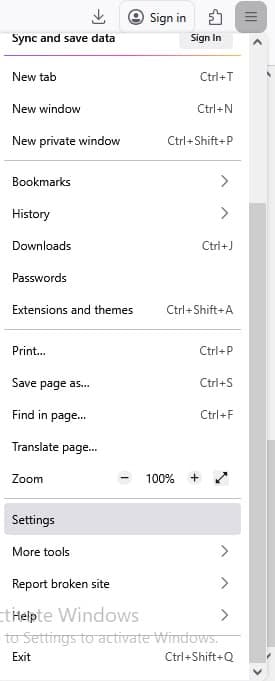
Networking3 min read
How to configure proxy Firefox for Windows
Follow these simple steps to configure a proxy server in Mozilla Firefox on your Windows computer.
1
Open Firefox Settings
Click on the application menu (three horizontal lines) in the top-right corner of the Firefox window and select Settings.
2
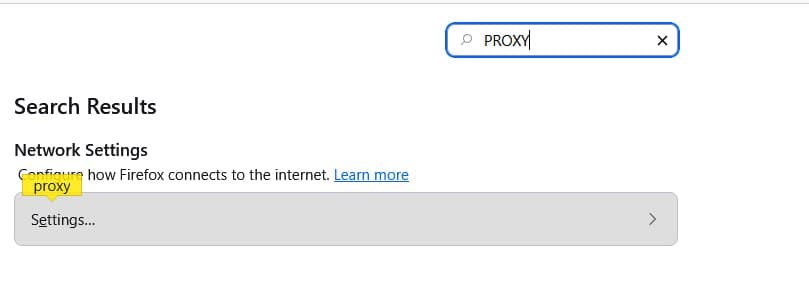
Search for Proxy Settings
In the Settings tab, use the search box at the top right to search for "PROXY". Under the Network Settings section, click the Settings... button.
3
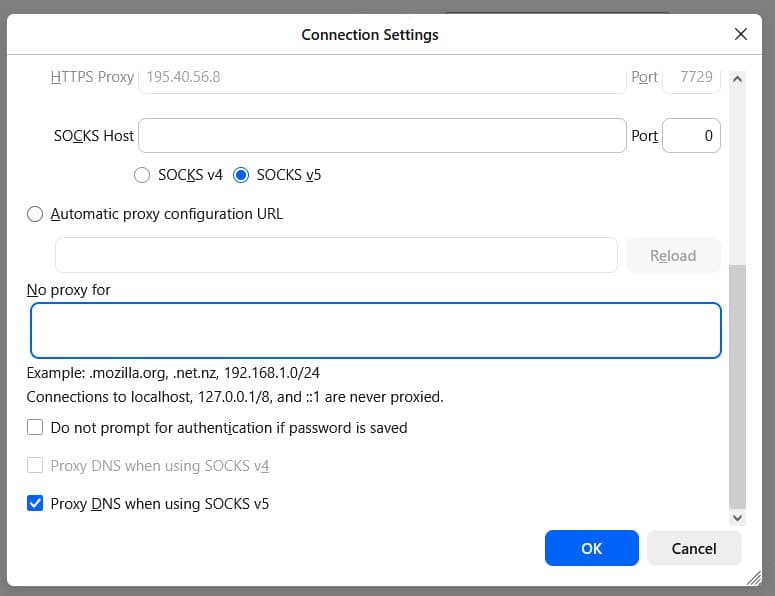
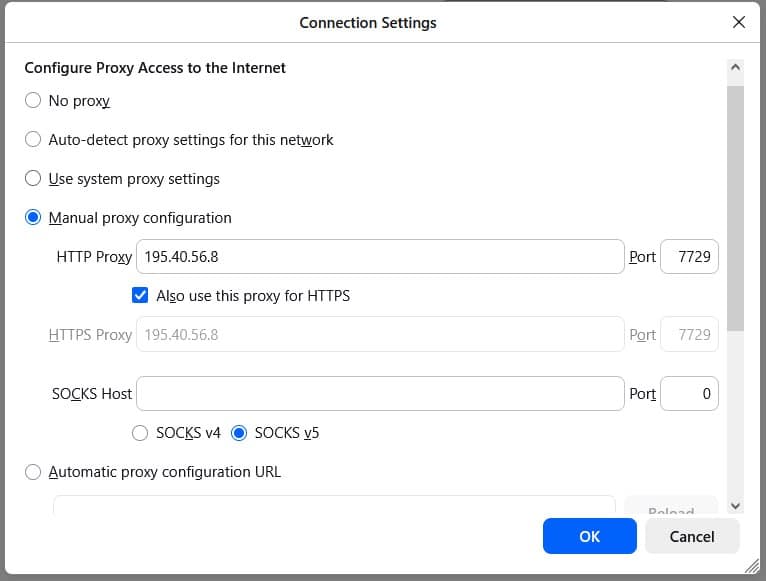
Configure Connection Details
In the Connection Settings window, select Manual proxy configuration. Enter your proxy IP address and port into either the HTTP Proxy or SOCKS Host fields depending on your proxy type. If using SOCKS v5, ensure Proxy DNS when using SOCKS v5 is checked. Click OK to save your changes.