Back to Learn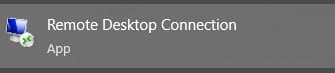
RDP Setup5 min read
How to connect to RDP from Windows computer
Connecting to your Remote Desktop Protocol (RDP) server from a Windows computer is straightforward. Follow these steps to access your server securely.
1
Open Remote Desktop Connection
Click on the Start menu, type "Remote Desktop Connection", and open the app.
2
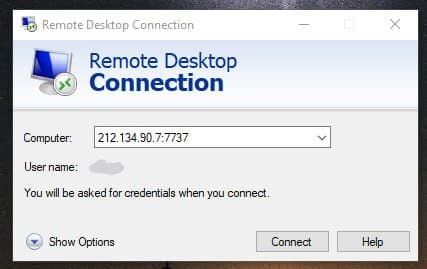
Enter connection details
Enter your server's Computer IP address and port (e.g., 212.134.90.7:7737), and your User name. Then click Connect.
3
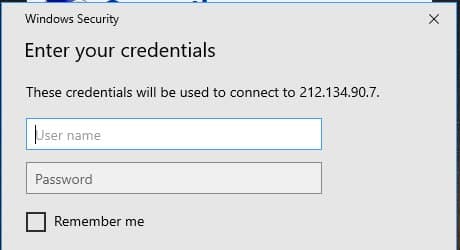
Enter your credentials
A Windows Security dialog will prompt you for your credentials. Enter the password provided for your account, and optionally check "Remember me". Click OK.
4
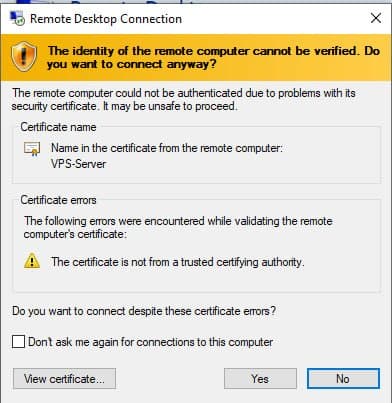
Accept the certificate
You might see a certificate warning stating that the identity of the remote computer cannot be verified. This is normal. Click Yes to connect.